JavaScript学习笔记18-防抖节流函数

1. 认识防抖和节流函数

  • 防抖和节流的概念其实最早并不是出现在软件工程中,防抖是出现在电子元件中,节流出现在流体流动中

    • 而JavaScript是事件驱动的,大量的操作会触发事件,加入到事件队列中处理
    • 而对于某些频繁的事件处理会造成性能的损耗,可以通过防抖和节流来限制事件频繁的发生
  • 防抖和节流函数目前已经是前端实际开发中两个非常重要的函数,也是面试经常被问到的面试题

  • 面试重点

    • 区分防抖和节流有什么区别
    • 如何应用
    • 内部原理
    • 手动编写

1.1. 认识防抖debounce函数

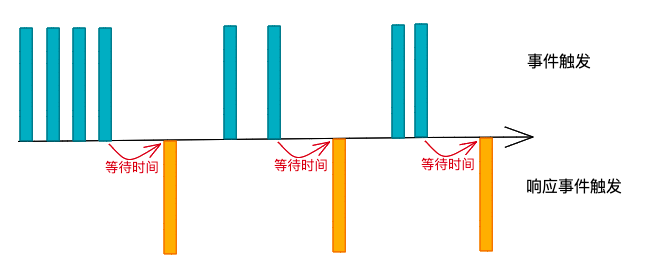
  • 用图来理解一下它的过程

    • 当事件触发时,相应的函数并不会立即触发,而是会等待一定的时间
    • 当事件密集触发时,函数的触发会被频繁的推迟
    • 只有等待了一段时间也没有事件触发,才会真正的执行响应函数

  • 防抖的应用场景很多

    • 输入框中频繁的输入内容,搜索或者提交信息
    • 频繁的点击按钮,触发某个事件
    • 监听浏览器滚动事件,完成某些特 定操作
    • 用户缩放浏览器的resize事件

1.2. 防抖函数的案例

  • 在某个搜索框中输入自己想要搜索的内容

  • 比如想要搜索一个MacBook

    • 输入m时,为了更好的用户体验,通常会出现对应的联想内容,这些联想内容通常是保存在服务器的,所以需要一次网络请求
    • 当继续输入ma时,再次发送网络请求
    • 那么macbook一共需要发送7次网络请求
    • 这大大损耗整个系统的性能,无论是前端的事件处理,还是对于服务器的压力
  • 需要这么多次的网络请求吗?

    • 不需要,正确的做法应该是在合适的情况下再发送网络请求
    • 比如用户快速的输入一个macbook,那么只是发送一次网络请求
    • 比如用户是输入一个m想了一会儿,这个时候m确实应该发送一次网络请求
    • 也就是监听用户在某个时间,比如500ms内,没有再次触发时间时,再发送网络请求
  • 这就是防抖的操作

    • 只有在某个时间内,没有再次触发某个函数时,才真正的调用这个函数

1.3. 认识节流throttle函数

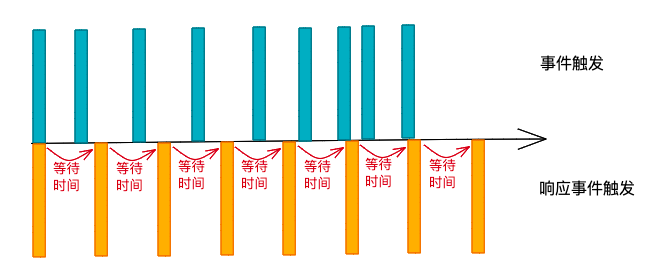
  • 用图来理解一下节流的过程

    • 当事件触发时,会执行这个事件的响应函数

    • 如果这个事件会被频繁触发,那么节流函数会按照一定的频率来执行函数

    • 不管在这个中间有多少次触发这个事件,执行函数的频繁总是固定的

  • 节流的应用场景

    • 监听页面的滚动事件
    • 鼠标移动事件
    • 用户频繁点击按钮操作
    • 游戏中的一些设计

1.4. 节流函数的应用场景

  • 飞机大战的游戏
    • 按下空格会发射一个子弹
    • 很多飞机大战的游戏中会有这样的设定,即使按下的频率非常快,子弹也会保持一定的频率来发射
    • 比如1秒钟只能发射一次,即使用户在这1秒钟按下了10次,子弹会保持发射一颗的频率来发射
    • 但是事件是触发了10次的,响应的函数只触发了一次

1.5. 生活中的例子-防抖和节流

  • 生活中防抖的例子

    • 比如说有一天上完课,说大家有什么问题,等待五分钟的时间
    • 如果在五分钟的时间内,没有同学问问题,就下课
    • 在此期间,a同学过来问问题,并且帮他解答,解答完后,再次等待五分钟的时间看有没有其他同学问问题
    • 如果等待超过了5分钟,就点击了下课(才真正执行这个时间)
  • 生活中节流的例子

    • 比如说有一天上完课,说大家有什么问题来问我,但是在一个5分钟之内,不管有多少同学来问问题,只会解答一个问题
    • 如果在解答完一个问题后,5分钟之后还没有同学问问题,那么就下课

2. 案例准备

  • 通过一个搜索框来延迟防抖函数的实现过程
    • 监听input的输入,通过打印模拟网络请求
    • 测试发现快速输入一个macbook共发送了7次请求,需要对它进行防抖操作
1
2
3
4
5
6
7
8
<input type="text">
<script>
const input = document.querySelector("input");
let count = 0;
input.oninput = function(){
console.log(`发送了${++count}次请求`);
}
</script>

3. Underscore库

  • 通过一些第三方库来实现防抖操作

  • 这里使用underscore

    • 可以理解成lodash是underscore的升级版,它更重量级,功能也更多
    • 但是目前看到underscore还在维护,lodash已经很久没有更新了

3.1. Underscore的安装

Underscore的安装有很多种方式

  • 下载Underscore,本地引入

  • 通过CDN直接引入

    1
    <script src="https://cdn.jsdelivr.net/npm/underscore@1.13.1/underscore-umd-min.js"></script>
  • 通过包管理工具(npm)管理安装

3.2. Underscore实现防抖和节流

1
2
3
4
5
6
7
8
9
10
11
12
13
<input type="text">
<script src="https://cdn.jsdelivr.net/npm/underscore@1.13.6/underscore-umd-min.js"></script>
<script>
const input = document.querySelector("input");
let count = 0;
const inputChange = function(){
console.log(`发送了${++count}次请求`);
}
// 防抖
// input.oninput = _.debounce(inputChange,1000);
// 节流
input.oninput = _.throttle(inputChange,1000);
</script>

4. 自定义防抖函数

  • 防抖基本功能实现
    • 可以实现防抖效果
    • 优化参数和this指向
    • 优化取消操作(增加取消功能)
    • 优化立即执行效果(第一次立即执行)
    • 优化返回值

4.1. 调用

1
2
3
4
5
6
7
8
9
10
11
12
13
14
15
16
17
18
19
20
21
22
23
24
25
26
27
28
29
30
31
32
33
34
<input type="text">
<button>取消</button>
<script src="index.js"></script>
<script>
const input = document.querySelector("input");
let count = 0;
const inputChange = function(event){
console.log(`发送了${++count}次请求`,this,event);
return count;
}
// 防抖
// input.oninput = _.debounce(inputChange,1000);

// 自定义防抖
// 得到 _debounce函数,this指向window
const debounceChange = debounce(inputChange,3000,false,res=>{
console.log("callbackFn",res);
})
// 为了调用 return的promise函数,得到then
const tempFn = (...args)=>{
// 将函数中的this指向input元素,传入event事件
debounceChange.apply(input,args).then(res=>{
console.log("promise",res);
})
}
// 真正的输入事件调用
input.oninput = tempFn;

// 取消定时
document.querySelector("button").onclick = function(){
debounceChange.cancel();
}

</script>

4.2. 后台实现

1
2
3
4
5
6
7
8
9
10
11
12
13
14
15
16
17
18
19
20
21
22
23
24
25
26
27
28
29
30
31
32
33
34
35
36
37
38
39
40
41
42
43
44
45
46
47
48
49
50
51
52
53
54
55
56
57
58
59
60
61
62
63
64
function debounce(fn, delay, immediate = false, callbackFn) {
// 1. 定义一个定时器,保存上一次的定时器
let timer = null;
// 是否立即执行阀
let isInvoke = false;

// 真正的执行函数
const _debounce = function (...args) {
return new Promise((resolve, reject) => {
// 2. 清除上一次定时器
if (timer) {
clearTimeout(timer);
}

// 是否立即执行
if (immediate && !isInvoke) {
try {
const result = fn.apply(this, args);
// 通过promise拿到结果
resolve(result);
// 通过回调函数拿到结果
if (callbackFn) {
callbackFn(result);
}
} catch (error) {
reject(error);
}
// 连续键入时,应该关闭立即执行
isInvoke = true;
} else {
// 延时执行
timer = setTimeout(() => {
try {
// 3. 外面传入真正的执行函数
const result = fn.apply(this, args);
// 通过promise拿到结果
resolve(result);
// 通过回调函数拿到结果
if (callbackFn) {
callbackFn(result);
}
} catch (error) {
reject(error);
}
// 执行完定时器后,应该还原立即执行阀
timer = null;
isInvoke = false;
}, delay);
}
});
};

// 取消定时实现
_debounce.cancel = function () {
if (timer) {
clearTimeout(timer);
}
// 还原
timer = null;
isInvoke = false;
};

return _debounce;
}

5. 自定义节流函数

  • 节流函数的基本实现
  • 可以实现节流效果
  • 节流最后一次也可以执行
  • 优化添加取消功能
  • 优化返回值问题

5.1. 调用

1
2
3
4
5
6
7
8
9
10
11
12
13
14
15
16
17
18
19
20
21
22
23
24
25
26
27
28
29
30
31
32
33
34
35
36
37
38
39
<input type="text">
<button>取消</button>
<script src="index.js"></script>
<script>
const input = document.querySelector("input");
let count = 0;
const inputChange = function(event){
console.log(`发送了${++count}次请求`,this,event);
return count;
}
// 节流
// input.oninput = _.throttle(inputChange,1000);

// 自定义防抖
// 得到 _debounce函数,this指向window
const throttleChange = throttle(inputChange,3000,{
leading: false,
trailing: true,
callbackFn:res=>{
console.log("callbackFn",res);}
});
// 为了调用 return的promise函数,得到then
const tempFn = (...args)=>{
// 将函数中的this指向input元素,传入event事件
throttleChange.apply(input,args).then(res=>{
console.log("promise",res);
})
}
// 真正的输入事件调用
input.oninput = tempFn;

// 取消定时
document.querySelector("button").onclick = function(){
throttleChange.cancel.call(input);
}
// 自定义节流
// input.oninput= throttle(inputChange,2000);

</script>

5.2. 后台实现

1
2
3
4
5
6
7
8
9
10
11
12
13
14
15
16
17
18
19
20
21
22
23
24
25
26
27
28
29
30
31
32
33
34
35
36
37
38
39
40
41
42
43
44
45
46
47
48
49
50
51
52
53
54
55
56
57
58
59
60
61
62
63
64
65
66
67
68
69
70
71
72
73
74
75
76
77
78
79
80
81
82
83
84
function throttle(
fn,
interval,
options = { leading: true, trailing: false, callbackFn }
) {
const { leading, trailing, callbackFn } = options;
// 记录上次执行函数的时间
let lastTime = 0;
// 记录时间
let timer = null;

// 真正的执行函数
const _throttle = function (...args) {
return new Promise((resolve, reject) => {
// 记录当前事件触发时的时间
let nowTime = new Date().getTime();

// 第一次是否执行
if (!lastTime && !leading) {
lastTime = nowTime;
}

// 使用当前触发的是假和之前的时间间隔以及上一次开始的时间
// 计算出还剩余多长时间需要去触发函数
let remainTime = interval - (nowTime - lastTime);

if (remainTime <= 0) {
if (timer) {
clearTimeout(timer);
timer = null;
}

try {
// 真正触发的函数
const result = fn.apply(this, args);
resolve(result);

// 通过回调函数拿到结果
if (callbackFn) {
callbackFn(result);
}
} catch (error) {
reject(error);
}

// 保留上次触发时间
lastTime = nowTime;

return;
}

// 最后一次是否执行
if (trailing && !timer) {
timer = setTimeout(() => {
timer = null;
lastTime = !leading ? 0 : new Date().getTime();

try {
// 真正触发的函数
const result = fn.apply(this, args);
resolve(result);

// 通过回调函数拿到结果
if (callbackFn) {
callbackFn(result);
}
} catch (error) {
reject(error);
}
}, remainTime);
}
});
};

_throttle.cancel = function () {
if(timer){
clearTimeout(timer);
}
timer = null;
lastTime = 0;
};

return _throttle;
}
本文结束  感谢您的阅读