前端-JS学习笔记-DOM实战案例

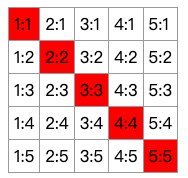
1. 创建表格

1
2
3
4
5
6
7
8
9
10
11
12
13
14
15
16
17
18
19
20
21
22
// 表格元素
var table = document.createElement("table");
table.style.borderCollapse = "collapse";
var row = 5;
// 行
for (var i = 1; i <= row; i++) {
var tr = document.createElement("tr");
table.append(tr);
// 列
for (var j = 1; j <= row; j++) {
var td = document.createElement("td");
td.innerHTML = `${j}:${i}`;
td.style.border = "1px solid #999";
td.style.padding = "5px";
// 对角线变色
if(i === j){
td.style.backgroundColor = "red";
}
tr.append(td);
}
}
document.body.append(table);

2. 通过prompt创建列表

通过prompt接收用户的输入,根据输入创建一个列表

1
2
3
4
5
6
7
8
9
10
11
12
13
14
var ul = document.createElement("ul");
document.body.append(ul);

var flag = true;
while(flag){
var message = prompt("输入信息");
if(!message) {
flag = false;
}else{
var li = document.createElement("li");
li.innerText = message;
ul.append(li);
}
}

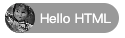
3. 轮播消息提示

3.1. css

1
2
3
4
5
6
7
8
9
10
11
12
13
14
15
16
17
18
19
.tip-bar {
display: inline-flex;
height: 30px;
border-radius: 15px;
background-color: rgba(0, 0, 0, 0.4);
align-items: center;
}
.tip-bar img {
width: 30px;
height: 30px;
border-radius: 50%;
margin-right: 5px;
object-fit: cover;
}
.tip-bar span {
font-size: 13px;
color: white;
margin-right: 8px;
}

3.2. html

1
2
3
4
<div class="tip-bar">
<img>
<span></span>
</div>

3.3. js

1
2
3
4
5
6
7
8
9
10
11
12
13
14
15
16
17
18
19
20
21
22
23
24
25
26
27
28
29
30
31
32
33
34
35
36
37
// ajax请求 从服务器拿到数据
var tipList = [
{
icon: "./1.png",
message: "Hello HTML"
},
{
icon: "./2.png",
message: "Hello CSS"
},
{
icon: "./1.png",
message: "Hello JavaScript"
}
]
// 动态切换数据
// 1.获取元素
var tipBar = document.querySelector(".tip-bar");
var imgEl = tipBar.querySelector("img");
var spanEl = tipBar.querySelector("span");

// 切换数据
var idx = 0;
// 获取第一个数组数据
imgEl.src = tipList[idx].icon;
spanEl.innerText = tipList[idx].message;
idx++;
setInterval(function(){
// 给DOM设置内容
imgEl.src = tipList[idx].icon;
spanEl.innerText = tipList[idx].message;
idx++;
// 重新计算索引
if(idx == tipList.length) {
idx = 0;
}
},1000);

4. 关闭元素

4.1. css

1
2
3
4
5
6
7
8
9
10
11
12
13
14
15
16
17
18
19
20
21
22
23
24
25
26
27
28
29
30
31
32
33
34
35
36
37
38
39
/* 重置样式 */
body,div,span,a {
padding: 0;
margin: 0;
}
.top-bar {
display: flex;
height: 40px;
line-height: 40px;
color: #fff;
font-size: 14px;
text-align: center;
overflow: hidden;
transition: all .5s;
}
.delete {
display: flex;
align-items: center;
flex: 1;
height: 100%;
background-color: #000;
}
.icon {
width: 10px;
height: 10px;
padding: 0 13px;
}
.logo {
width: 27px;
height: 27px;
margin-right: 30px;
}
.open {
display: block;
width: 90px;
color: #fff;
background-color: #ed462f;
text-decoration: none;
}

4.2. html

1
2
3
4
5
6
7
8
<div class="top-bar">
<div class="delete">
<img src="./img/delete.png" class="icon">
<img src="./img/logo.png" class="logo">
<span>打开京东App,购物更轻松</span>
</div>
<a href="#" class="open">立即打开</a>
</div>

4.3. js

1
2
3
4
5
6
7
8
9
10
11
var topBarEl = document.querySelector(".top-bar");
var deleteEl = topBarEl.querySelector(".delete");

// 让div.top-bar元素缓慢上移至高度为0
deleteEl.onclick = function() {
topBarEl.style.height = 0;
}
// 动画停止后移除整个div
topBarEl.ontransitionend = function () {
this.remove();
}

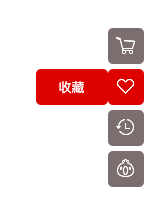
5. 侧边栏

5.1. css

1
2
3
4
5
6
7
8
9
10
11
12
13
14
15
16
17
18
19
20
21
22
23
24
25
26
27
28
29
30
31
32
33
34
35
36
37
38
39
40
41
42
43
44
45
46
47
48
49
50
51
/* 重置样式 */
body,ul,li {
padding: 0;
margin: 0;
}
ul,li {
text-decoration: none;
}

/* 固定在屏幕中心 */
.tool-bar {
position: fixed;
top: 50%;
right: 50%;
transform: translate(-50%, -50%);
}
.item {
display: flex;
position: relative;
margin-bottom: 5px;
background-color: #7a6e6e;
border-radius: 5px;
text-align: center;
transition: all 1s;
}
.icon {
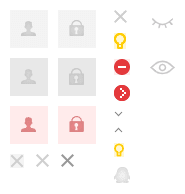
width: 36px;
height: 36px;
background: url(./img/toolbars.png) no-repeat;
}
.word {
position: absolute;
top: 0;
right: 36px;
width: 0;
height: 100%;
line-height: 36px;
border-radius: 5px;
color: #fff;
font-size: 13px;
opacity: 0;
transition: all 1s;
}
.active.item {
background-color: #ce3c28;
}
.active .word {
opacity: 1;
width: 72px;
background-color: #ce3c28;
}

5.2. html

1
2
3
4
5
6
7
8
9
10
11
12
13
14
15
16
17
18
<ul class="tool-bar">
<li class="item">
<div class="icon"></div>
<div class="word">购物车</div>
</li>
<li class="item">
<div class="icon"></div>
<div class="word">收藏</div>
</li>
<li class="item">
<div class="icon"></div>
<div class="word">历史</div>
</li>
<li class="item">
<div class="icon"></div>
<div class="word">钱包</div>
</li>
</ul>

5.3. js

1
2
3
4
5
6
7
8
9
10
11
12
13
14
15
16
17
18
19
20
21
// 获取元素
var toolBarEl = document.querySelector(".tool-bar");
var iconEls = toolBarEl.querySelectorAll(".icon");

// 动态设置
for (var i = 0; i < iconEls.length; i++) {
var iconEl = iconEls[i];
iconEl.style.backgroundPosition = `-48px -${i*50}px`;
}

// 监听鼠标事件
toolBarEl.onmouseover = function(event) {
const iconEl = event.target;
const liEl = iconEl.parentElement;
liEl.classList.add("active");
}
toolBarEl.onmouseout = function(event) {
const iconEl = event.target;
const liEl = iconEl.parentElement;
liEl.classList.remove("active");
}

6. 登录框

6.1. css

1
2
3
4
5
6
7
8
9
10
11
12
13
14
15
16
17
18
19
20
21
22
23
24
25
26
27
28
29
30
31
32
33
34
35
36
37
38
39
40
41
42
43
44
45
46
47
48
49
50
51
52
53
54
55
56
57
58
59
60
61
62
63
64
65
66
67
68
69
70
71
72
73
74
75
76
77
78
79
80
81
82
body,form,div,h1,input {
padding: 0;
margin: 0;
}
input {
outline: none;
border: none;
}
.login {
position: absolute;
top: 50%;
left: 50%;
transform: translate(-50%,-50%);
text-align: center;
}
.user,
.pwd,
.btn {
display: flex;
position: relative;
width: 300px;
height: 38px;
margin-top: 20px;
}
.css_sprites {
background: url(./css_sprites.png) no-repeat;
}
.user .logo,
.pwd .logo {
width: 38px;
}
.user .logo {
background-position: -10px -58px;
}
.pwd .logo {
background-position: -58px -58px;
}
.user input,
.pwd input {
flex: 1;
padding: 0 50px 0 15px;
border: 2px solid #eee;
border-left: none;
font-size: 16px;
}
.user input::placeholder,
.pwd input::placeholder{
color: #cdcdcd;
font-size: 14px;
}
.delete,
.close {
position: absolute;
top: 0;
bottom: 0;
margin: auto 0;
cursor: pointer;
}
.delete{
right: 10px;
width: 13px;
height: 13px;
background-position: -36px -154px;
}
.close {
right: 35px;
width: 21px;
height: 11px;
background-position: -152px -18px;
}
.close.active {
width: 25px;
height: 15px;
background-position: -150px -60px;
}
.btn {
color: #fff;
background-color: #d45349;
font-size: 18px;
justify-content: center;
cursor: pointer;
}

6.2. html

1
2
3
4
5
6
7
8
9
10
11
12
13
14
15
<form class="login">
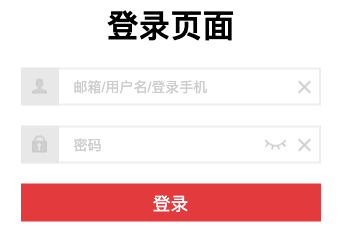
<h1>登录页面</h1>
<div class="user">
<div class="css_sprites logo"></div>
<input type="text" name="username" placeholder="邮箱/用户名/登录手机">
<div class="css_sprites delete"></div>
</div>
<div class="pwd">
<div class="css_sprites logo"></div>
<input type="password" name="password" placeholder="密码">
<div class="css_sprites close"></div>
<div class="css_sprites delete"></div>
</div>
<input type="submit" value="登录" class="btn">
</form>

6.3. js

1
2
3
4
5
6
7
8
9
10
11
12
13
14
15
16
17
18
19
20
21
22
23
24
25
26
var loginForm = document.querySelector(".login");
var deleteEls = loginForm.querySelectorAll(".delete");
var closeEl = loginForm.querySelector(".close");

for (const deleteEl of deleteEls) {
deleteEl.onclick = function(){
// 找到输入框
var inputEl = deleteEl.parentElement.children[1];
if(inputEl.value){
inputEl.value = "";
}
}
}

// 改变输入框类型
closeEl.onclick = function() {
var inputEl = closeEl.previousElementSibling;
if(closeEl.classList.contains("active")){
closeEl.classList.remove("active");
inputEl.type = "password";
}
else {
closeEl.classList.add("active");
inputEl.type = "text";
}
}

7. 购物车

7.1. css

1
2
3
4
5
6
7
8
9
10
11
12
13
14
15
16
17
18
19
20
21
22
23
table {
border-collapse: collapse;
text-align: center;
margin-bottom: 10px;
}
thead {
border: 1px solid #999;
color: black;
font-size: 16px;
font-weight: 700;
}
td,th {
border: 1px solid #999;
padding: 5px 10px;
}
td {
font-size: 14px;
}
.total {
font-size: 18px;
font-weight: 700;
color: black;
}

7.2. html

1
2
3
4
5
6
7
8
9
10
11
12
13
14
<table>
<thead>
<tr>
<th>编号</th>
<th>书籍名词</th>
<th>出版日期</th>
<th>价格</th>
<th>购买数量</th>
<th>操作</th>
</tr>
</thead>
<tbody></tbody>
</table>
<p class="total"></p>

7.3. js

1
2
3
4
5
6
7
8
9
10
11
12
13
14
15
16
17
18
19
20
21
22
23
24
25
26
27
28
29
30
31
32
33
34
35
36
37
38
39
40
41
42
43
44
45
46
47
48
49
50
51
52
53
54
55
56
57
58
59
60
61
62
63
64
65
66
67
68
69
70
71
72
73
74
75
76
77
78
79
80
81
var table = document.querySelector("table");
var content = table.tBodies[0];
var totalPrice = document.querySelector(".total");


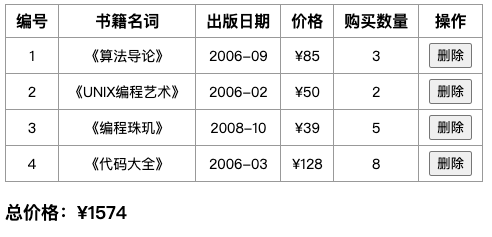
var books = [
{
id: 1,
bookName: "《算法导论》",
publishDate: "2006-09",
price: 85,
num: 3
},
{
id: 2,
bookName: "《UNIX编程艺术》",
publishDate: "2006-02",
price: 50,
num: 2
},
{
id: 3,
bookName: "《编程珠玑》",
publishDate: "2008-10",
price: 39,
num: 5
},
{
id: 4,
bookName: "《代码大全》",
publishDate: "2006-03",
price: 128,
num: 8
}
];
var price = 0;

// 装载数据
for (var i = 0; i < books.length; i++) {
var book = books[i];
// 创建行
var tr = document.createElement("tr");

for (const key in book) {
// 创建单元格
var td = document.createElement("td");
td.innerText = book[key];
if(key === "price") {
td.innerHTML = "&yen;"+book[key];
}
tr.append(td);
}
// 删除按钮
var td = document.createElement("td");
var deleteBtn = document.createElement("button");
deleteBtn.innerText = "删除";
td.append(deleteBtn);
tr.append(td);

deleteBtn.onclick = function() {
// 得到按钮所在行
var deleteTr = this.parentElement.parentElement;
// 给定的tr在封闭的tbody中的位置
var deleteIdx = deleteTr.sectionRowIndex;
// 在数组中删除对应元素
books.splice(deleteIdx,1);
// 在表格中删除对应列
deleteTr.remove();
totalPrice.innerHTML = getTotal();
}
content.append(tr);
}

function getTotal() {
var price = books.reduce(function(preValue,item) {
return preValue + item.price* item.num;
},0);
return "总价格:&yen;"+ price;
}

totalPrice.innerHTML = getTotal();

8. 百度换肤

1
2
3
4
5
6
7
8
9
var li = document.querySelectorAll("li");

for(var i=0;i<li.length;i++){
li[i].onmouseover=function(){
var src = this.querySelector("img").src;
console.log(src);
document.body.style.backgroundImage='url('+src+')';
}
}

9. 跟随鼠标移动

鼠标移动触发事件

1
2
3
4
5
6
7
8
9
// <img src="images/run.gif" alt="">
var img = document.querySelector("img");
document.addEventListener("mousemove",function(event) {
var x = event.pageX;
var y = event.pageY;
img.style.display="inline";
img.style.top=y-img.height/2+"px";
img.style.left=x-img.width/2+"px";
})

10. 元素拖动至指定位置

10.1. css

1
2
3
4
5
6
7
8
9
10
11
12
13
14
15
16
17
body{
position:relative;
}
container{
position:absolute;
left:0;
width:300px;
height:300px;
background:url("1.png") no-repeat center center;
}
box{
position:absolute;
right:0;
width:300px;
height:300px;
background: #d4efdf;
}

10.2. html

1
2
3
4
5
6
7
<div id="container">
<h1>Hello World</h1>
<p>您好</p>
</div>

<div id="box">
</div>

10.3. js

1
2
3
4
5
6
7
8
9
10
11
12
13
14
15
16
17
// 获取id为container的对应元素
var con = document.getElementById("container");
//使元素能被拖动
con.draggable=true;

// box
var box =document.getElementById("box");

//拖动到框内时会不断触发ondragover事件
box.ondragover = function(e){
//去除事件默认行为
e.preventDefault();
}
//松开鼠标左键触发ondrop事件
box.ondrop=function(e){
box.appendChild(con);
}

11. 依据侧边栏实现跳转

11.1. css

1
2
3
4
5
6
7
8
9
10
11
12
13
14
15
16
17
18
19
20
21
22
23
24
25
26
27
28
29
30
31
32
33
34
35
body{
width: 1120px;
margin: 0 auto;
}
.w{
margin-bottom: 10px;
font-size: 50px;
line-height: 50px;
color: #fff;
text-align: center;
}
.header{
height: 200px;
background-color: pink;
}
.banner{
height: 300px;
background-color: red;
}
.main{
height: 800px;
background-color: purple;
}
.slide-bar{
position: absolute;
top: 255px;
right: 50px;
width: 80px;
height: 200px;
background-color: rgb(247, 100, 142);
}
.slide-bar .goBack{
opacity: 0;
transition: .5s;
}

11.2. html

1
2
3
4
5
6
<div class="slide-bar">
<span class="goBack">返回顶部</span>
</div>
<div class="header w">头部-200</div>
<div class="banner w">banner-300</div>
<div class="main w">主体-800</div>

11.3. js

1
2
3
4
5
6
7
8
9
10
11
12
13
14
15
16
17
18
19
20
21
22
23
24
25
26
27
28
29
30
31
32
33
var header = document.querySelector(".header");
var banner = document.querySelector(".banner");
var main = document.querySelector(".main");
var slide = document.querySelector(".slide-bar");
var span = slide.querySelector(".goBack");
//侧边栏固定定位top=原本侧边栏距离父元素上方偏移量-banner距离父元素上方偏移量
var slideTop = slide.offsetTop - banner.offsetTop;
document.addEventListener("scroll",function(e){

var scrollY = getScroll().top;
//到达banner部分,侧边栏变为固定定位
if(scrollY>=banner.offsetTop){
slide.style.position = 'fixed';
slide.style.top = slideTop +'px';

}else{
slide.style.position = 'absolute';
slide.style.top = "255px";
}
//到达主体部分,显示字体
if(scrollY>=main.offsetTop){
span.style.opacity = 1;
}else{
span.style.opacity = 0;
}
});
//兼容性问题
function getScroll(){
return {
left: window.pageXOffset || document.documentElement.scrollLeft|| document.body.scrollLeft|| 0,
top: window.pageYOffset || document.documentElement.scrollTop|| document.body.scrollTop|| 0
}
}

12. 缓动动画-返回顶部

1
2
3
4
5
6
7
8
9
10
11
12
13
14
15
16
17
18
19
20
21
22
23
//返回顶部
span.addEventListener("click",function(){
animate(window,0);
});

function animate(obj,target,callback){
clearInterval(obj.timer);
//不同元素不同定时器
obj.timer = setInterval(function(){
//缓动移动距离 = (目标值-现在的位置)/10
step = (target-window.pageYOffset)/10;
step=step>0?Math.ceil(step):Math.floor(step);

window.scroll(0,window.pageYOffset + step);

if(window.pageYOffset==target){
clearInterval(obj.timer);
//回调函数
callback&&callback();

}
},15);
}

13. 获取鼠标在盒子内的坐标

13.1. css

1
2
3
4
5
div{
width: 200px;
height: 200px;
background-color: pink;
}

13.2. html

1
<div></div>

13.3. js

1
2
3
4
5
6
7
8
9
10
11
12
13
14
15
16
var div = document.querySelector("div");

div.addEventListener("click",function(e){
// 鼠标在页面中的x,y
var pagex = e.pageX;
var pagey = e.pageY;
console.log("page: "+pagex,pagey);
//div在页面中的x,y
var divx = div.offsetLeft;
var divy = div.offsetTop;
//鼠标距离页面的坐标减去盒子在页面中的距离,得到鼠标在盒子内的坐标
var x = pagex - divx;
var y = pagey - divy;

console.log(x,y);
});

14. 模态框拖拽

  1. 点击弹出层,弹出模态框,并且显示灰色半透明的遮挡层
  2. 点击关闭按钮,关闭模态框,同时关闭灰色半透明的遮挡层
  3. 鼠标放到模态框最上面一行,可以按住鼠标拖拽模态框在页面中移动
  4. 鼠标松开,可以停止模态框移动

14.1. css

1
2
3
4
5
6
7
8
9
10
11
12
13
14
15
16
17
18
19
20
21
22
23
24
25
26
27
28
29
30
31
32
33
34
35
36
37
38
39
40
41
42
43
44
45
46
47
48
49
50
51
52
html,body{
width: 100%;
height: 100%;
}
a{
text-decoration: none;
color: #333;
}
.box{
position: absolute;
top: 50%;
left: 50%;
transform: translate(-50%,-50%);
width: 70%;
height: 70%;
background-color: #fff;
z-index: 2;
display: none;
text-align: center;
}
.box h1{
cursor: move;
}
.box .cancel{
position: absolute;
top: 0;
right: 0;
width: 50px;
height: 50px;
transform: translate(50%,-50%);
border-radius: 50%;
background-color: #fff;
text-align: center;
}
.box .cancel a{
text-decoration: none;
color: #333;
font-size: 20px;
margin-top: 15px;
display: block;
}
.mask{
position: absolute;
top: 0;
left: 0;
width: 100%;
height: 100%;
/* z-index: 1; */
display: none;
background-color: rgba(0,0,0,.6);
transition: .5s;
}

14.2. html

1
2
3
4
5
6
7
8
<a href="javascript:;">点击弹出框</a>
<div class="mask"></div>
<div class="box">
<h1>content</h1>
<div class="cancel">
<a href="javascript:;">X</a>
</div>
</div>

14.3. js

1
2
3
4
5
6
7
8
9
10
11
12
13
14
15
16
17
18
19
20
21
22
23
24
25
26
27
28
var a = document.querySelector("a");
var mask = document.querySelector(".mask");
var box = document.querySelector(".box");
var h1 = box.querySelector("h1");
var cancel = box.querySelector(".cancel");
a.addEventListener("click",function(){
mask.style.display='block';
box.style.display='block';
});
cancel.addEventListener("click",function(){
mask.style.display='none';
box.style.display='none';
});
h1.addEventListener("mousedown",function(e){
// 1.鼠标在盒子内的x,y
var x = e.pageX - box.offsetLeft;
var y = e.pageY - box.offsetTop;
//2.鼠标移动,鼠标在页面中的坐标-鼠标在盒子内的坐标=模态框的left,top值
document.addEventListener("mousemove",move);
function move(e){
box.style.left = e.pageX - x + 'px';
box.style.top = e.pageY- y + 'px';
}
//3. 鼠标弹起,鼠标移动事件移除
document.addEventListener("mouseup",function(){
document.removeEventListener("mousemove",move);
});
});

15. 仿京东放大镜效果

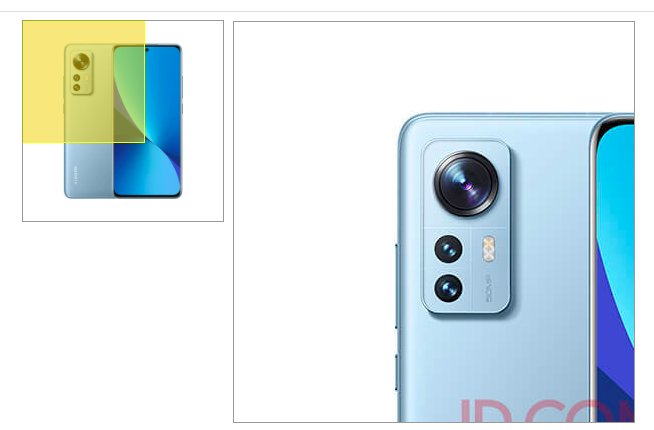
大图片移动距离 = 遮挡层移动距离*大图片最大移动距离/遮挡层最大移动距离

15.1. css

1
2
3
4
5
6
7
8
9
10
11
12
13
14
15
16
17
18
19
20
21
22
23
24
25
26
27
28
29
30
31
32
33
34
35
36
.box{
position: relative;
width: 200px;
height: 200px;
border: 1px solid #999;
margin-left: 400px;
cursor: move;
}
.box .small{
width: 100%;
}
.box .mask{
position: absolute;
top: 0;
left: 0;
background-color: rgba(241, 202, 5, 0.5);
width: 120px;
height: 120px;
border: 1px solid yellow;
display: none;
}
.box .bigimg{
position: absolute;
top: 0;
left: 210px;
width: 400px;
height: 400px;
border: 1px solid #999;
overflow: hidden;
display: none;
}
.box .bigimg .big{
position: absolute;
top: 0;
left: 0;
}

15.2. html

1
2
3
4
5
6
7
<div class="box">
<img src="images/iPhone.jpg" alt="" class="small">
<div class="mask"></div>
<div class="bigimg">
<img src="images/iPhoneX2.jpg" alt="" class="big">
</div>
</div>

15.3. js

1
2
3
4
5
6
7
8
9
10
11
12
13
14
15
16
17
18
19
20
21
22
23
24
25
26
27
28
29
30
31
32
33
34
35
36
37
38
39
40
41
42
43
var box = document.querySelector(".box");
var mask = box.querySelector(".mask");
var bigdiv = box.querySelector(".bigimg");
var big = bigdiv.querySelector(".big");
box.addEventListener("mouseover",function(){
mask.style.display = "block";
bigdiv.style.display = "block";
});
box.addEventListener("mousemove",function(e){

var x = e.pageX - box.offsetLeft - mask.offsetWidth/2;
var y = e.pageY - box.offsetTop - mask.offsetHeight/2;

var limitx = box.clientWidth-mask.offsetWidth;
var limity = box.clientHeight-mask.offsetHeight;
// console.log(limitx,limity);
if(x<0){
x=0;
}
if(x>limitx){
x=limitx;
}
if(y<0){
y=0;
}
if(y>limity){
y=limity;
}
mask.style.left = x + 'px';
mask.style.top = y + 'px';

//大图片移动距离 = 遮挡层移动距离*大图片最大移动距离/遮挡层最大移动距离
var biglimitx = big.offsetWidth - bigdiv.offsetWidth;
var biglimity = big.offsetHeight - bigdiv.offsetHeight;
var bigx = x*biglimitx/limitx;
var bigy = y*biglimity/limity;
big.style.left = -bigx + 'px';
big.style.top = -bigy + 'px';
});
box.addEventListener("mouseout",function(){
mask.style.display = "none";
bigdiv.style.display = "none";
});
本文结束  感谢您的阅读